Mobile Pixels Tetra – An 8″ touchscreen I got distracted from reviewing
MobilePixels reached out to ask if I wanted to look at any of their portable monitors. You know, those things you dangle off a laptop for a bit of extra screen real-estate on the go?
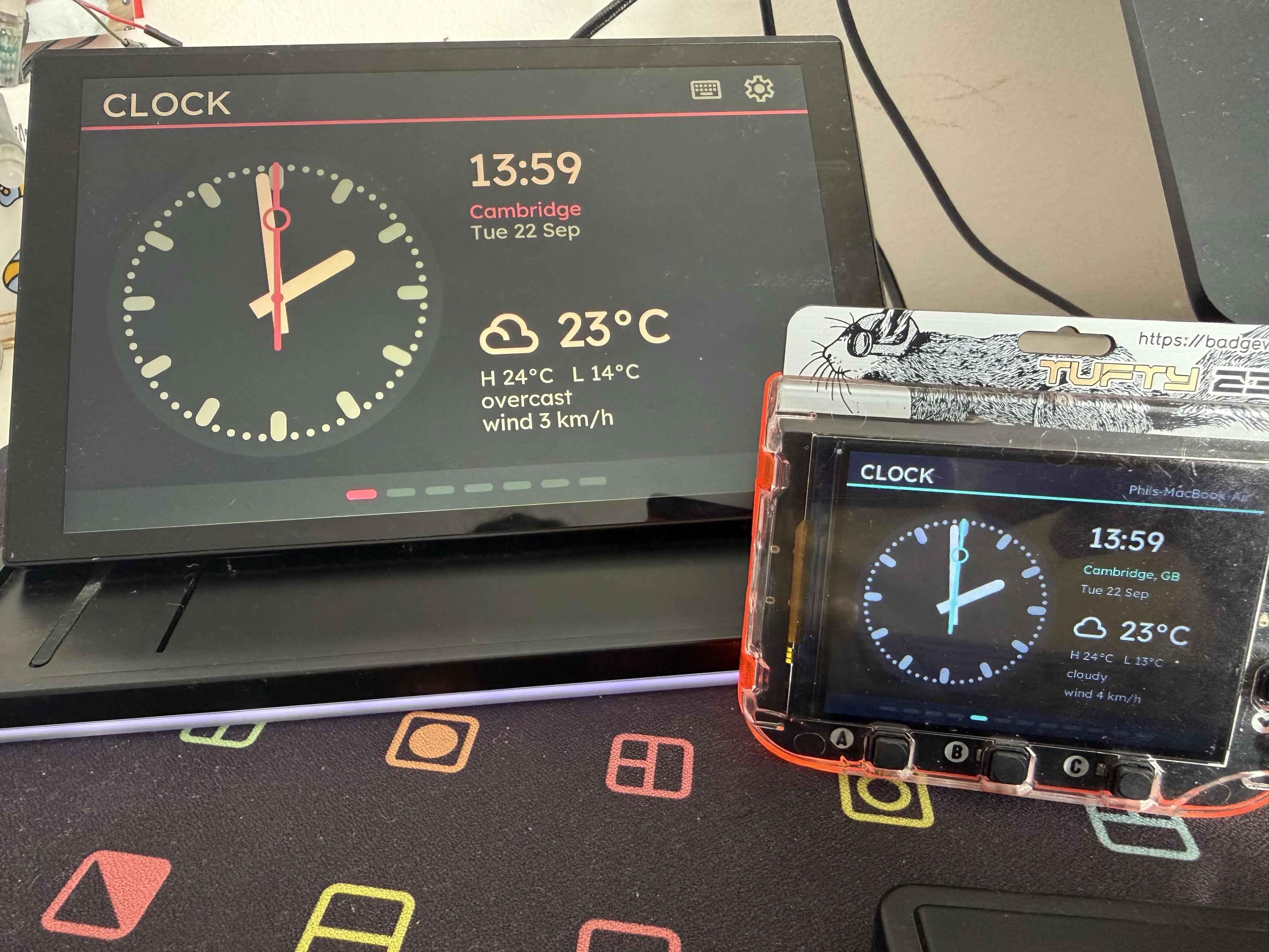
Ported statsbadge to the MobilePixels Tetra, an 8” display with multitouch running off my Mac.
Naturally I dug into their website and found the weirdest thing I could possibly dig up their Tetra Keyboard. Fusing an excellent 8″ detachable touchscreen display (a single USB C for display, power and touch) with a fairly uninspiring, low-profile, chiclet-style split, Bluetooth keyboard it’s a mixed bag. But it’s an interesting and unique mixed bag so I decided to give it a look.
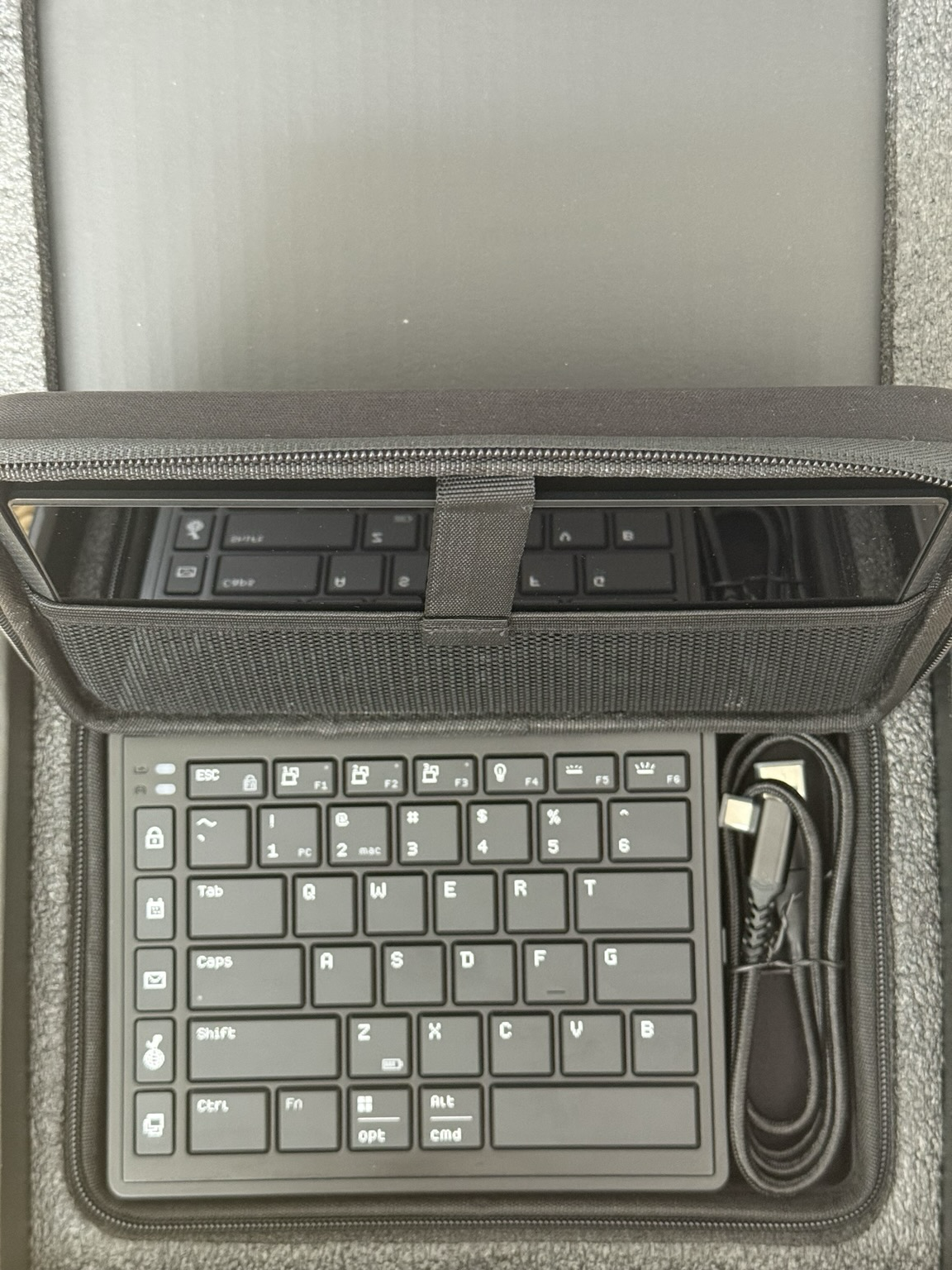
The Tetra comes with a neat little carry case!
In short the display is great, but the keyboard lets it down and anyone with even a cursory experience with splits or mechanical keyboards will immediately want something better. It’s portable, I’ll give it that, in fact the whole Tetra 8″ display and keyboard will stack nicely into a (supplied!) pouch for use on the go and that’s a compelling use on its own. I could picture this setup used with a mac mini, or a small single board computer with proper USB Type-C (and DisplayPort alt mode) support.
The Tetra Keyboard
For beginners, or hunt-and-peck typers (I am a particularly chaotic typist), it’s not a great option since the extra macro keys on the left-hand edge will trick your fingers into thinking you’re hitting Enter, Shift or Tab when you’re firing up a web browser instead. Given that the 8″ display is supposed to function as the macro pad, having a selection of physical macro keys kinda undermines it somewhat; though a mission control key right under my left pinky could be useful if my fingers would adjust.
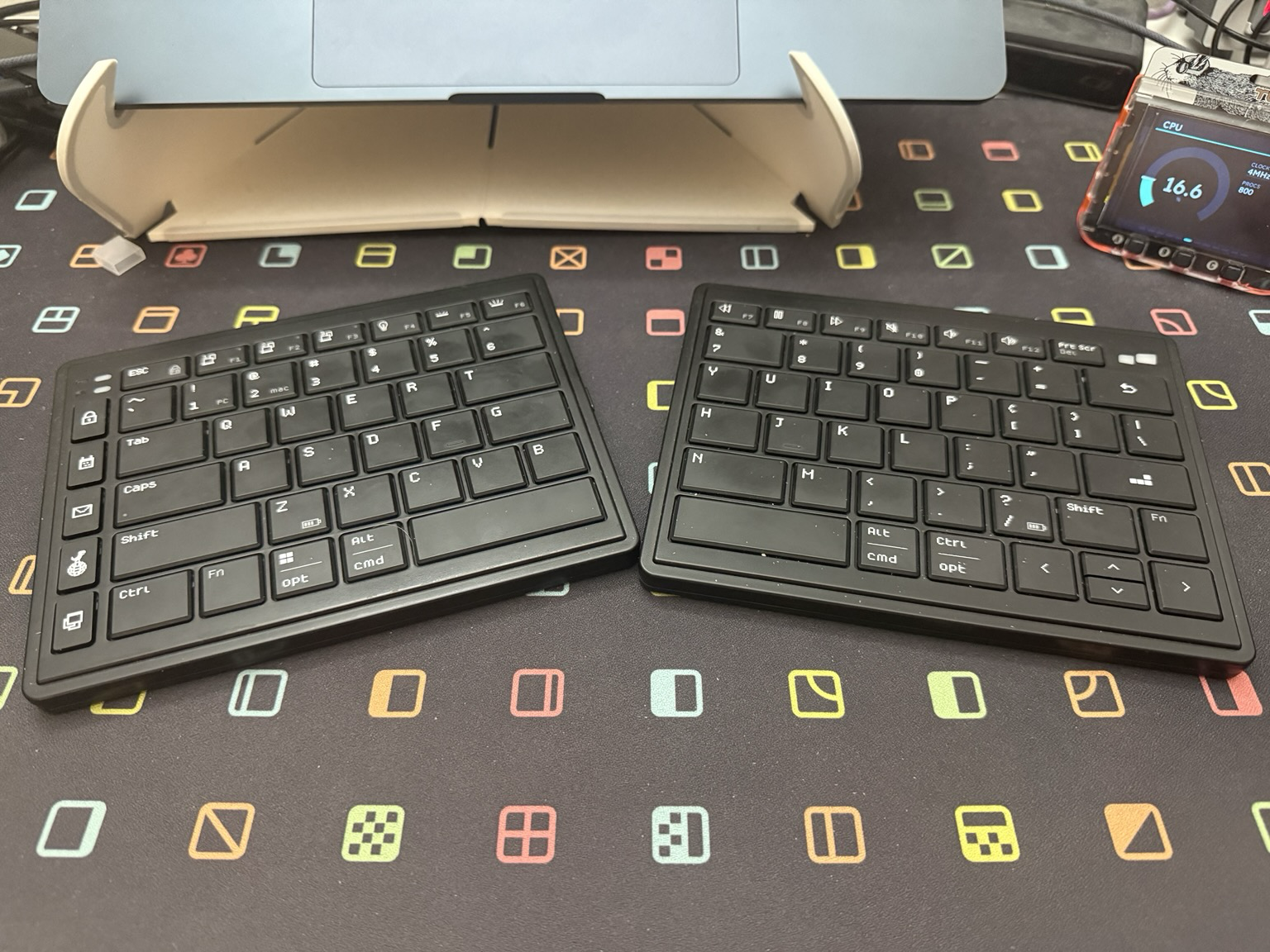
It’s a shame the keyboard isn’t a bit nicer. Could do with properly resembling a split layout and dropping those awkward macro keys.
The keyboard is passable, though, and its ability to magnetically latch onto the left/right hand edges of the main 8″ display module for charging is pretty cool. On the downside the two halves have no USB Type C port so they need the 8″ display module to charge at all, and can’t be taken out on the go on their own- ouch! To their credit they do snap together into a single, if somewhat weird, board making the Tetra an interesting exercise in typing flexibility if nothing else.
MobilePixels advertise four typing modes – Split, Splice, Stacked and Gaming (the latter using only the left-hand half) – which are more or less the flexibility you’d expect from a standard macro-pad except without any angle adjustment. In fact in any mode angle adjustment, much less tenting, is right out.
Interestingly I’ve been having some trouble with gummed up keys on my MacBook Air so the typing feel of Tetra’s keyboard somewhat edges it out at the moment. It’s a pretty typical chiclet setup, though, with quite firm keys and a flat, dull sound. It’s not quiet, louder than my MacBook keyboard anyway, and not particularly nice to type on. Despite this it doesn’t have any fatals flaws- key presses register reliable, even at the edges of caps, and I’m not having any trouble with macOS compatibility.
The Display
First off, and perhaps a little surprisingly, the display uses a real DisplayPort alt-mode over USB Type-C and not DisplayLink or some other confounding setup. It’s plug-and-play easy to get working with macOS and simple to build software that launches full-screen on just the Tetra display.
Hook up the attached USB-A to USB Type-C adapter, though, and some dark magic (read: probably deeply non-standard re-routing of USB data lines) gives you a Magic Control Technology “Trigger 6” USB monitor device. There’s a reverse engineering effort for these devices and a possibly working Linux driver. In this mode you *will* need a driver, but at least there’s hope for users with only delightfully vintage (USB 3.1, mind) USB ports to rely on. The huge downside- the touch controller is not available over USB A, most likely because the compressed video needs a whole lotta unimpeded bandwidth. A display-only option is still useful, but it’s not quite as fun.
In both modes it’s a 1280×800 60Hz display, but over USB-A it’s compressed to JPEG with no VSYNC so it’s very much a last-resort display mode. To save bandwidth frames are sent as “dirty rectangle” portions, transferring only the data that has actually changed.
Armed with this juicy knowledge I threw together a userspace display driver – https://github.com/Gadgetoid/tetra-trigger-display – that can be glued into an SDL application to drive the display’s USB-A -> Video mode. Off the back of this I built an app that would search my local (macOS Photos) photo gallery for any search term I deigned to give it, displaying the resulting photos targeted with Apple’s Vision Framework. A digital photo frame with the full brunt of my MacBook Air behind it, and my obscenely huge photo library, is quite something. Find it at https://github.com/Gadgetoid/tetra-gallery – and if you’re one of the two people who will likely ever use this… enjoy!
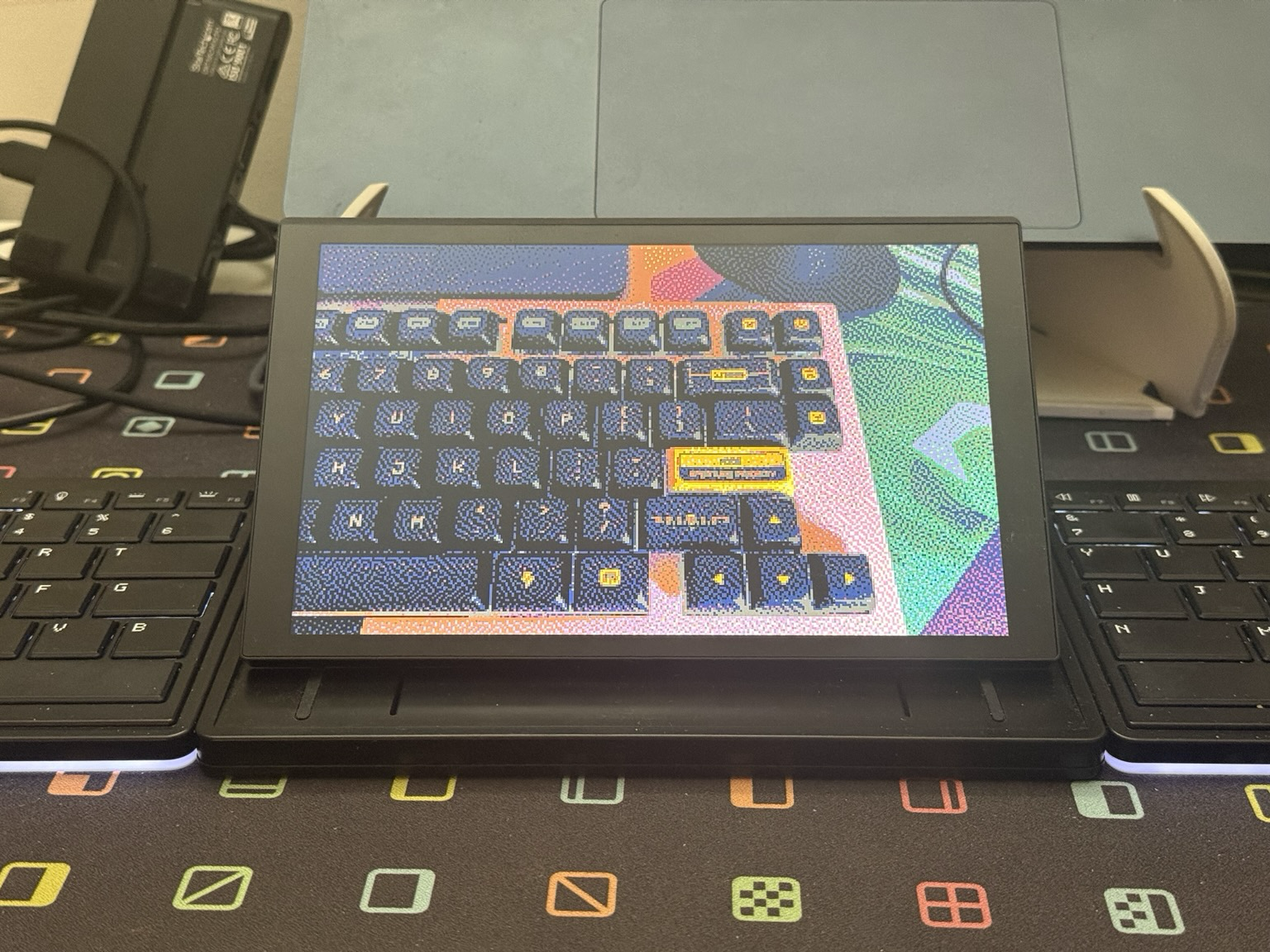
Makes a very good digital photo frame though- this is via the USB-A video mode, which transmits JPEG over USB. I’ve made it extra spicy by adding artistic dithering and palette quantisation effects.
Note: The Tetra display has quite raked-back angle, even when it’s fully locked in the upright position so it’s not great as a photo frame viewd away from your desk. From a chair, though, it sure as heck beats the few scrappy photos tucked around my desk.
The Touchscreen
The touchscreen, on the other hand, is intriguing. Out of the box it hooks up to macOS and displays content without a fuss (you can extend, mirror or choose a specific app’s contents to show), but touch requires a separate driver. Though thankfully there *is* a driver for macOS.
The display doesn’t quite fill out the front of its enclosure, but the bezel is small enough to be inoffensive and its real benefit is edge to edge glass that keeps your finger from bumping into a nasty plastic frame. This makes the full screen area readily touchable, and that’s surprisingly useful in some cases.
It’s a 1280×800 pixel display, which isn’t a lot for any significant workflow but is nonetheless useful as somewhere to stick a thing you need to look at often. Discord, Slack, YouTube or the latest episode of Bones playing on Netflix are all good candidates. Crucially, though, they are a waste of the ten point multitouch screen.
Furthermore, despite Tetra offering their own macro-pad software for macOS, I was unable to get it to work. It would bounce the dock and close abruptly. I wasn’t in the mood for debugging so…
Custom touchscreen macropad software it is, then!
Thankfully touch is just a USB device so writing a custom driver that skips any need for a third party install, and keeps multitouch working alongside your existing macOS input devices (the two can coexist, powered by the same computer) is quite trivial.
The USB stack includes a Genesys Logic 2.0 Hub and a Weida touch controller (2575:fe13) which is the sort of thing I’m used to poking on Linux (albeit over i2c) so an application grabbing the USB device and owning touch (completely independent of system keyboard and mouse input) is entirely feasible.
For the display macOS just sees a normal external display at 1280×800 pixels, 1:1 with no HiDPI, overscan or scaling to fight. A handful of OSD functions are available to poke too- the panel speaks DDC/CI over the DisplayPort AUX channel’s I2C but this needed IOAVService (ala https://github.com/waydabber/m1ddc) and a sweep of capabilities, yielding controls for brightness, contrast, colour preset and more. Regrettably the underglow effect for the display itself can only be accessed via the OSD.
I decided to port my statsbadge application to the 8″ touchscreen, or at least use it as an inspiration for a big, bold, status display with some basic macro-pad features. Since MicroPython is perfectly happy running embedded in an application I could port the Pimoroni Badgeware graphics API to desktop (for maybe the fifth time at this point) and run large chunks of statsbadge unmodified from their original Tufty 2350 versions. With a bit of glue to feed these panels the right data – time, weather, locations, etc – it came together quickly.
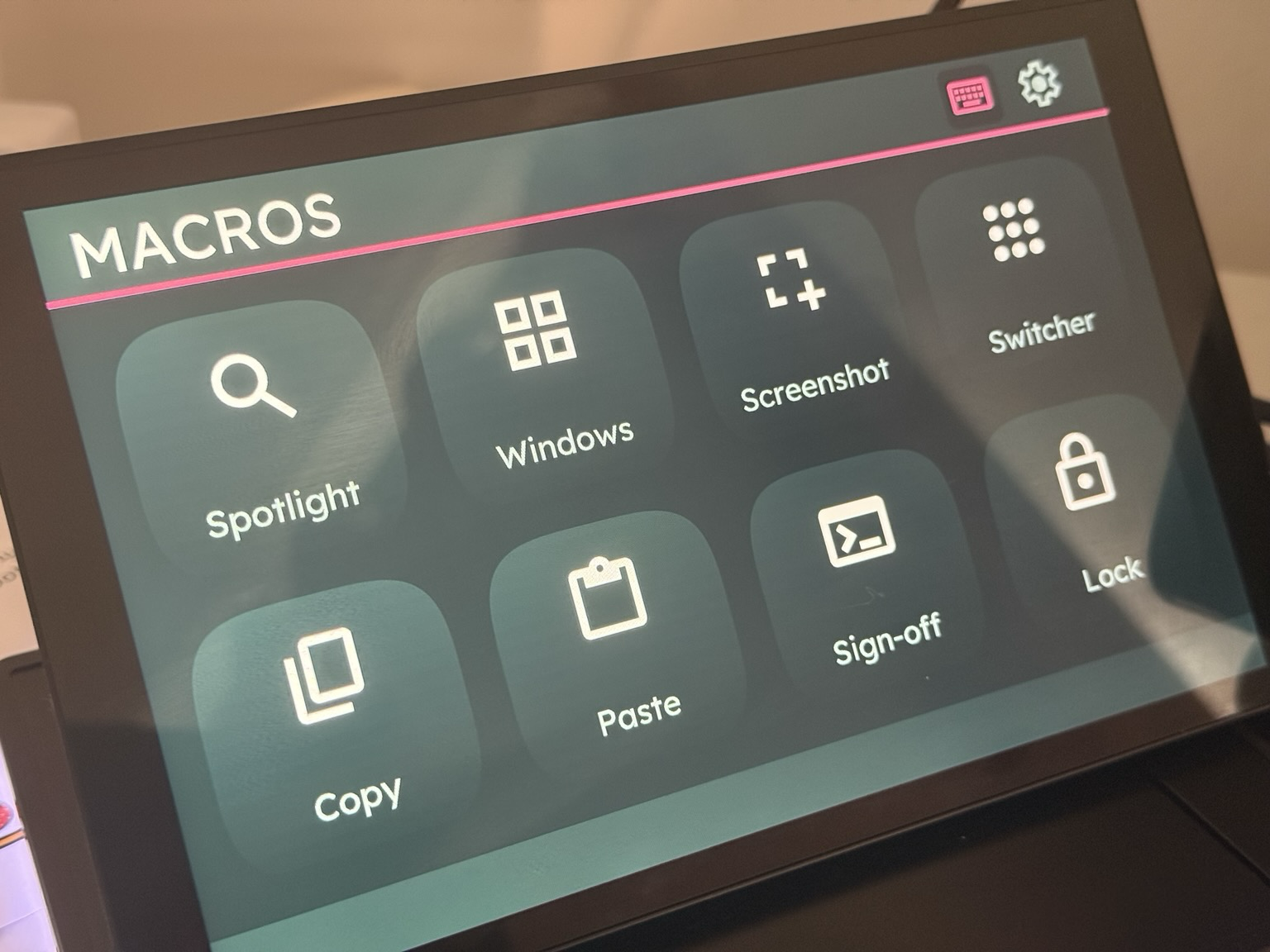
Also included a quick access macro pad, more out of completeness than any real need.
The screenshot button has a fly-out palette with options for window, screen, region which trigger the appropriate key combo (re-using my ISOXLIIS code)
The result- a completely standalone display which can be swiped/tapped and interacted with without interfering with my regular mouse/keyboard input. It’s almost as if it has a brain of its own. I dubbed it Tetra Command.
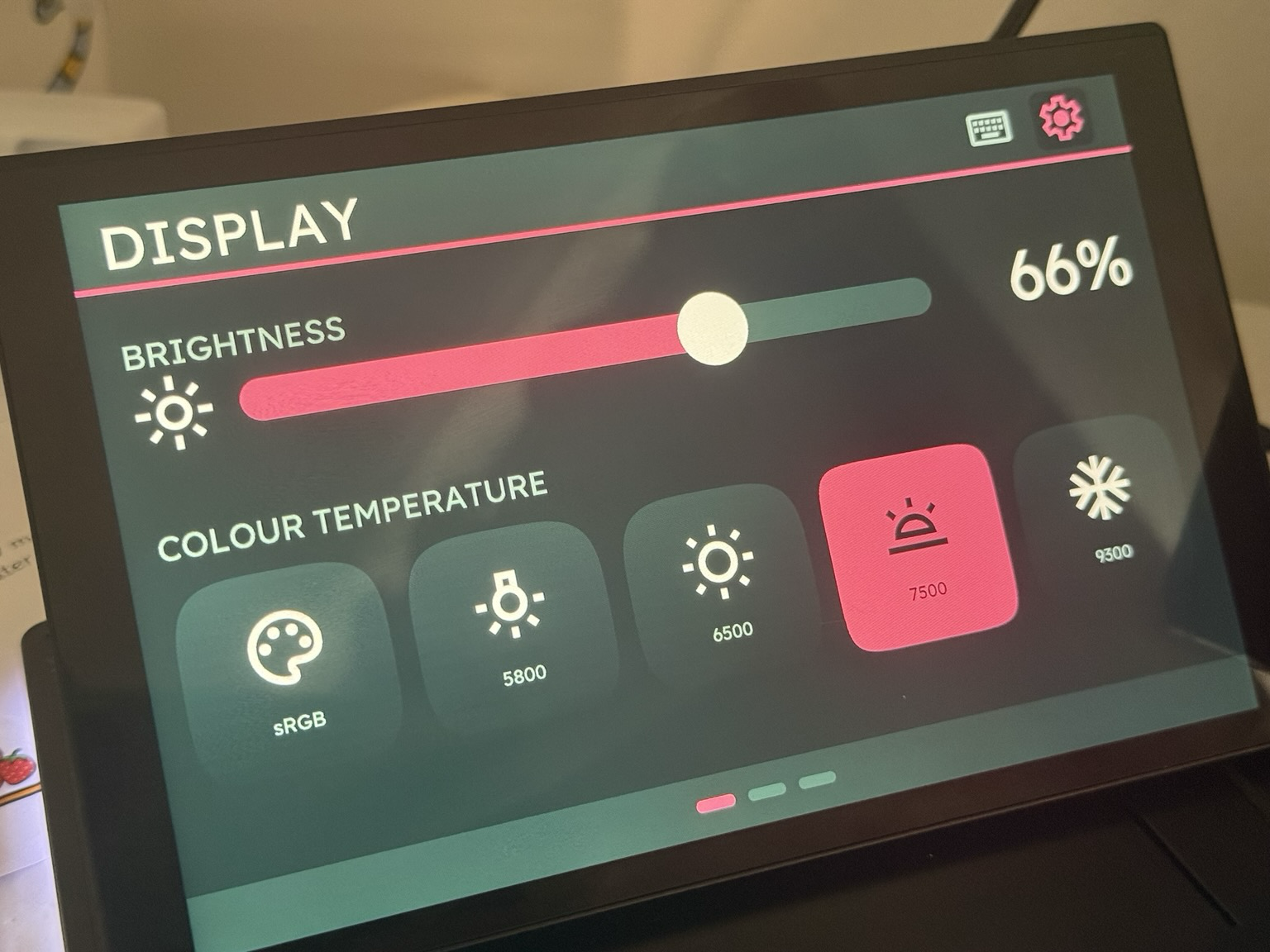
Since I had access to the display config I could reproduce the useful bits of the janky OSD right in my app with big bold buttons and a juicy slider.
With the DDC control I could also mirror most of the panel’s ugly OSD into the application itself giving beautifully smooth brightness control and a big bold colour temperature switcher.
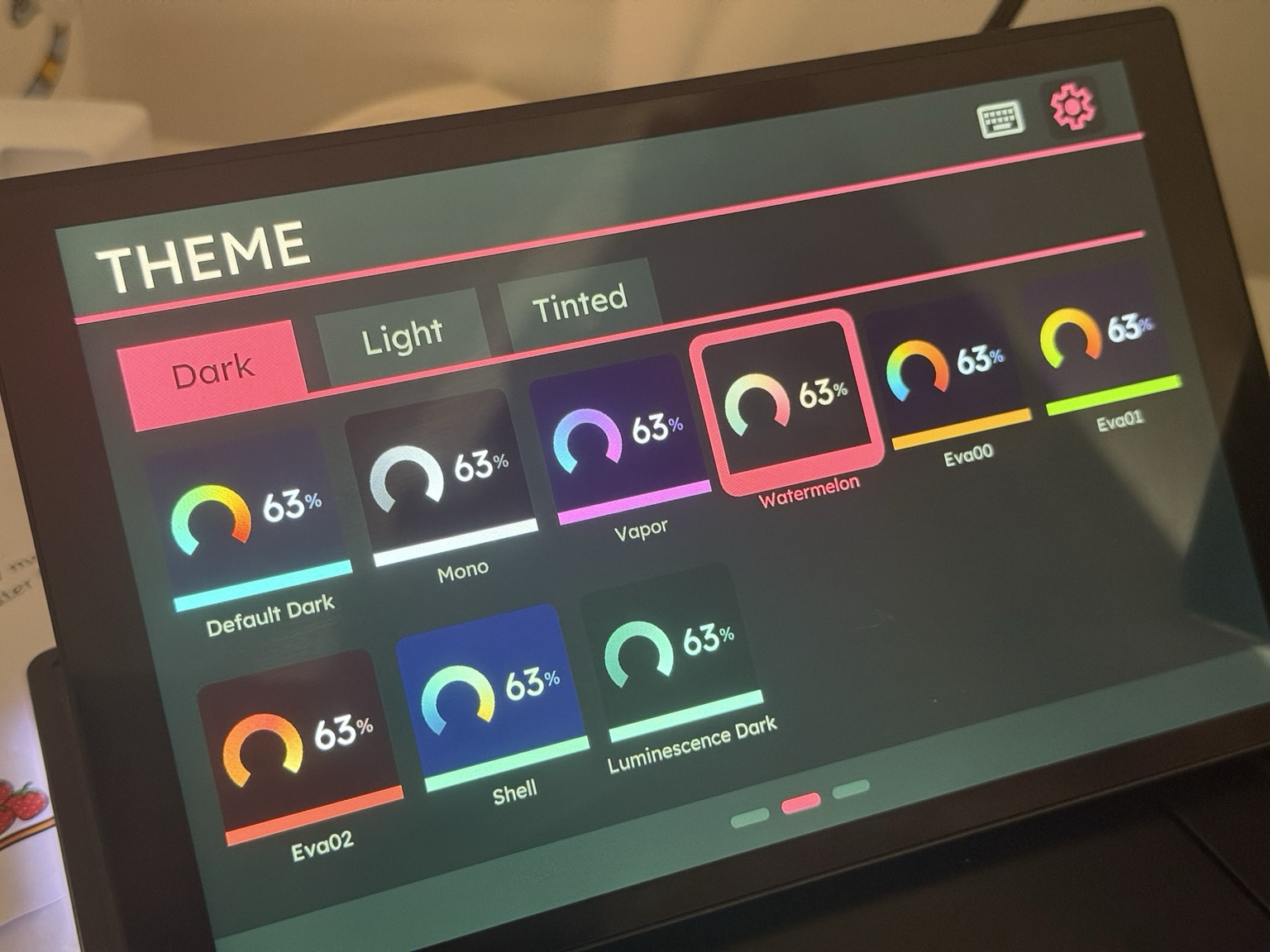
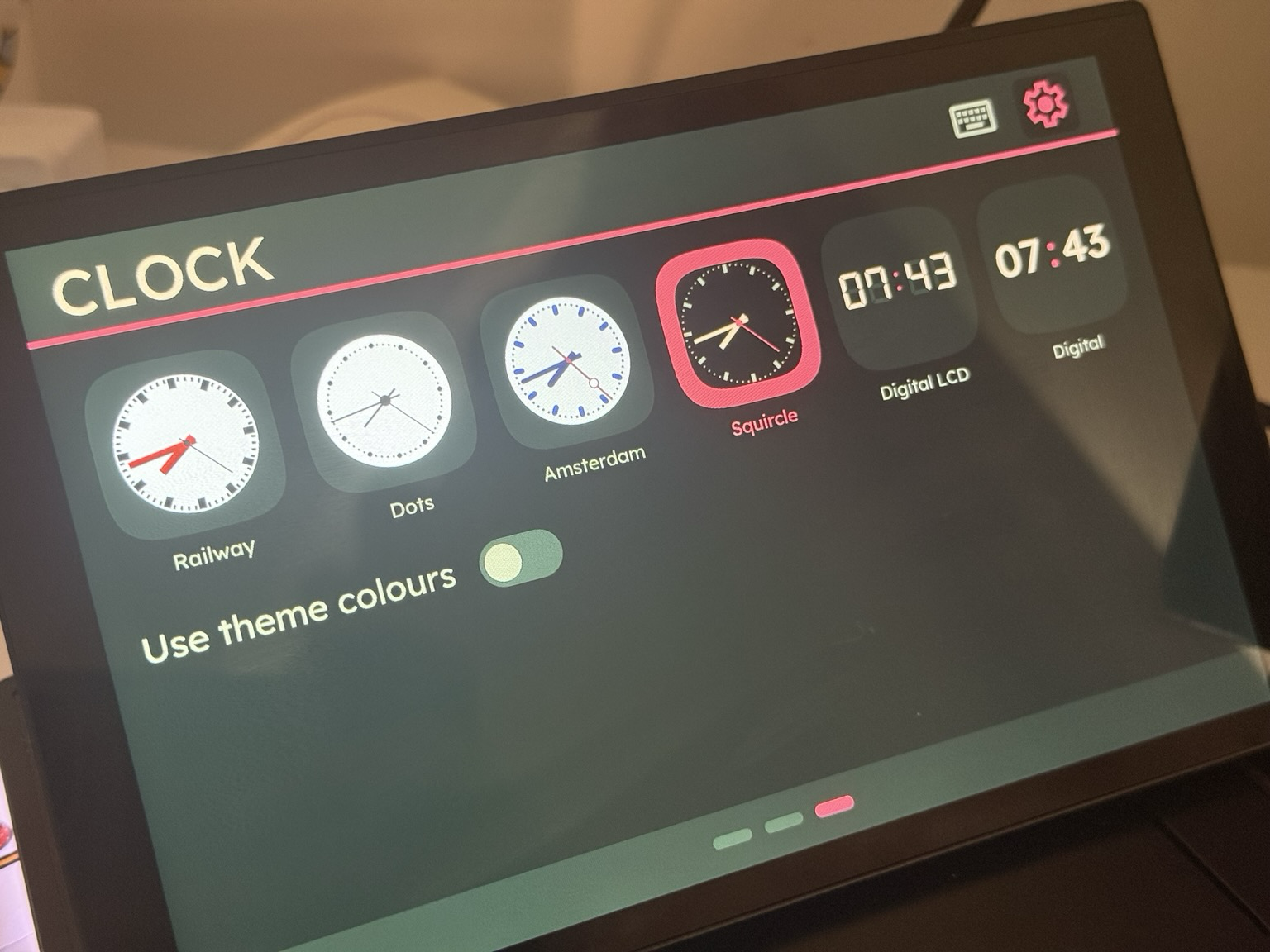
Also very happy with how my theme and clock config pages turned out. Big, bold and abundantly clear what you’re getting.
statsbadge’s switchable themes were then also a pretty obvious addition.
In a similar vein I tried a couple of experimental projects including a multitouch piano – intended to function a bit like a ROLI Seaboard – and the result was thoroughly fantastic. With a dedicated driver and its own application backing the content the 8″ touchscreen feels like a stand-alone tablet. It does, genuinely, support ten points of touch but you’d be hard pressed to get ten fingers to do anything meaningful on such a small display. What I can do is use it as a pretty good set of touchscreen drum pads, with adjustable pitch and volume across the simulated drum-heads… that’s about as demanding a touch application as you can get since high latency or missed taps make themselves quickly obvious.
The TLDR is that MobilePixels Tetra LCD is a completely stock DP alt-mode panel paired with a HID digitizer. As such it comes with no proprietary nonsense to complicate efforts to write your own software (the USB-A video path notwithstanding). On macOS a full-screen app on the Tetra survives using Mission Control and switching spaces, making it really feel like the device is stand-alone.
How could Tetra be better?
Honestly, ditch the keyboard, stick a couple of USB A (or downstream USB Type-C) ports into the base of Tetra’s 8″ display, and give it a decent power supply and suddenly you’ve got a really cool, 8″ touchscreen docking station you can pair with a keyboard you actually like. As long as there’s software good enough to make it worth using… *wink wink*
As it stands, and probably as evidenced by the steep discount (basically half price), Tetra just hasn’t captured the attention it perhaps deserves. A great display coupled to a mediocre keyboard is a hard sell, though it obviously has its fans.
What it is, though, is lightweight which is probably what you want in a portable monitor. Despite its apparent bulk the base of the Tetra is mostly empty, and MobilePixels haven’t stuck any weights in there to fake a feeling of quality.
You can pick up MobilePixels Tetra Keyboard for £190 at time of writing . It still feels a tad spendy, but it’s not a bad deal for something that’s well finished, works nicely with macOS and comes with an – albeit not great – keyboard. That’s to say the edge-to-edge touchscreen glass, solid desktop stand and wires sticking out of the back of the base rather than the side of the monitor are easily undervalued corners that MobilePixels have not cut.
If you want a cool target for your own touchscreen software experiments buy it for the display but not for the keyboard.